← Back to home
FAQ

Battery Widgets, Sync & Setup FAQ

Find answers about setup, battery updates, widgets, iCloud sync, and troubleshooting in AllMyBatteries.

Quick answers

How do I add my other iPhones and iPads?
Install AllMyBatteries on each device and open it once. It automatically uploads that device's battery to iCloud and appears in your list on all your other devices. No manual pairing needed.
How does it track AirPods battery?
AllMyBatteries reads available AirPods battery levels from the paired device and syncs them via iCloud. The charging case often needs to be open for a reading; availability varies by model. On Mac, the Bluetooth Helper can improve updates.
Does it drain my battery to monitor others?
AllMyBatteries is designed to be extremely lightweight. It uses iOS Background App Refresh (which the system controls and throttles) and iCloud's efficient push sync. The impact on your own battery is negligible.
Can I track Android devices?

Yes. Install and open AllMyBatteries Android Helper on your Android device, and keep it on the same Wi-Fi network as your Apple device. Allow the helper to run in the background; updates pause if Android stops it.

Download Android Helper (APK)
How often do battery levels update?
Background syncing and widget refreshes depend on system scheduling and device conditions. Widgets often refresh every 15–60 minutes, but intervals can be longer. Open AllMyBatteries on the device supplying the battery data to request a fresh reading.
Is my data private?
Absolutely. AllMyBatteries syncs exclusively through your personal iCloud account using CloudKit. Your battery data never touches any third-party servers — it stays between your devices and Apple's iCloud infrastructure.

App help and troubleshooting

How AllMyBatteries Works

AllMyBatteries tracks battery levels across multiple device types and syncs them through iCloud so the same list appears on your iPhone, iPad, Mac, Apple Watch, and widgets.

How does syncing work?

Each device is updated by the device that can actually read its battery data (usually itself or the device it is paired to). AllMyBatteries uploads those updates to iCloud, and your other devices and widgets read from iCloud.

Device types and how they update

Current device (iPhone, iPad, Mac, Apple Watch)

  • Uses the system battery information on the device itself.
  • On iOS 17+, battery levels are shown in 5 percent increments due to privacy rules.
  • Updates close to real time while the app is running in foreground.
  • Background update frequency depends on iOS/iPadOS. See Why my iOS devices not up to date?.

Other iPhone and iPad devices

  • Updates only when that device runs AllMyBatteries (background or foreground) and uploads to iCloud.
  • X Track can use Bluetooth to update nearby iPhone/iPad devices faster. Device names should match their Bluetooth names.

Apple accessories (AirPods, Apple Pencil, Magic Keyboard/Mouse/Trackpad, MagSafe Battery Pack)

  • Battery data for these accessories can come from different system sources, but the accessory still needs to be connected or discoverable at the moment of refresh.
  • AirPods case level is usually only available when the case is open; some models update while in use. See Tips For AirPods.
  • On Mac, install the Bluetooth Helper to improve updates for AirPods and other Bluetooth headphones.

Bluetooth devices

  • Works only when the device shares battery info over Bluetooth (some manufacturers choose not to broadcast battery info).
  • The device must be connected or discoverable at the moment of refresh.
  • Updates are performed by the device that manages the Bluetooth connection.
  • See Why aren't my Bluetooth devices up to date?.

HomeKit accessories

  • Uses HomeKit-provided battery info when available.
  • Requires HomeKit permission.
  • Updates only while AllMyBatteries is active.

Network devices (Android)

  • Requires a helper app on the device to share its battery status.
  • All devices must be on the same Wi-Fi network.
  • If the helper app on Android is stopped by the OS, updates will pause.

Custom devices

  • Manual entries for devices that cannot be read automatically.
  • Battery levels do not update automatically.
  • You can update battery levels via Shortcuts.
  • If you can fetch battery data in other ways (for example, via a device-specific API), you can use a Custom Device plus Shortcuts to bring that data into AllMyBatteries (for example, an electric car).

About how often are updates expected?

  • Foreground: current device updates about every minute; Bluetooth and network devices are checked about every 10 minutes.
  • Background: iOS and iPadOS typically allow refresh every 15 to 60 minutes, depending on system conditions.
  • Widgets: refresh is limited by system rules and is usually every 15 to 60 minutes.

What AllMyBatteries can’t do

  • Track every device type or every Bluetooth brand.
  • Provide real-time updates in the background.
  • Read battery data from devices that do not expose battery information.

What setup helps updates be smoother and more timely?

  • Make sure Background App Refresh is enabled. See Why my iOS devices not up to date?.
  • Do not force quit AllMyBatteries; open it regularly and consider adding widgets. See Why aren't widgets up to date?.
  • Keep Bluetooth on and grant Bluetooth permission.
  • Use the AllMyBatteries "Force sync" Shortcuts action, optionally with automations. See How to improve batteries tracking accuracy?.
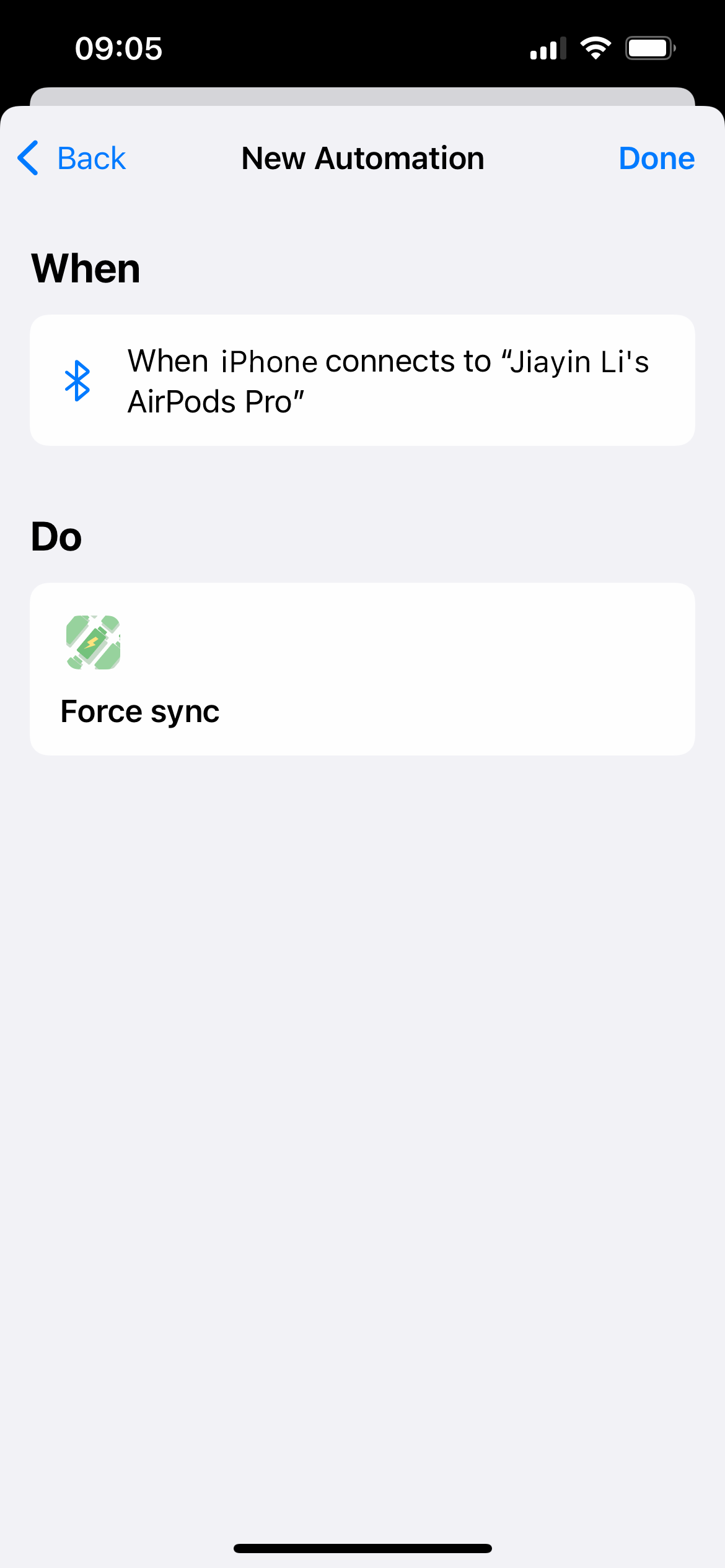
  • For AirPods on iPhone/iPad, set a Bluetooth automation to trigger Force sync when they connect. See Tips For AirPods.
  • On Mac, install and run the AllMyBatteries Bluetooth Helper to track AirPods and other Bluetooth headphones.
  • For Android, install the Android Helper app and allow it to run in the background.
  • For X Track, make sure device names in AllMyBatteries match their Bluetooth names.
Related articles

Why Aren't My Devices Up to Date?

The mechanism to track battery level is complicated and it varies between device types, so the reason why it loses track can also be different. Please select the type of device to view a more specific answer:

The device I'm currently running AllMyBatteries on

Other iPhone/iPad

AirPods

Bluetooth


If the answer above doesn't fix your issue, or you have anything you'd like to share, please feel free to send me feedback!

Why Aren’t Widgets Up to Date?
  1. iOS Widget Refresh Limitations
    iOS imposes restrictions on how frequently third-party app widgets can refresh. Typically, widgets can only update every 15–60 minutes. This is why the battery level shown in the widget may lag behind the actual value. Here’s how Apple explains it in their documentation:

    To manage system load, WidgetKit uses a budget to distribute widget reloads over the course of the day. The budget allocation is dynamic and takes many factors into account, including:
    1. The frequency and times the widget is visible to the user.
    2. The widget’s last reload time.
    3. Whether the widget’s containing app is active.
    
    A widget’s budget applies to a 24-hour period.
    WidgetKit tunes the 24-hour window to the user’s daily usage pattern, which means the daily budget doesn’t necessarily reset at exactly midnight. For a widget the user frequently views, a daily budget typically includes from 40 to 70 refreshes. This rate roughly translates to widget reloads every 15 to 60 minutes, but it’s common for these intervals to vary due to the many factors involved.
    
  2. Widgets Depend on the Main App
    Widgets themselves cannot directly retrieve battery levels for your devices. Instead, they rely on the main app to update battery information to iCloud, which the widget then retrieves. If some devices aren’t up to date in the widget, it’s likely because they haven’t been updated in the main app. Check out Why Aren’t My Devices Up to Date for more troubleshooting tips.

  3. Manually Refreshing the Widget
    Tapping the widget to open the main app will refresh the widget immediately, and this action won’t affect its refresh quota.

How to Improve Battery Tracking Accuracy

According to why my iOS devices not up-to-date, when AllMyBatteries is in the background, when and whether your devices will be updated is up to iOS.

However, we have figured out a workaround to force sync your batteries on a regular basis, by using the Shortcuts app.

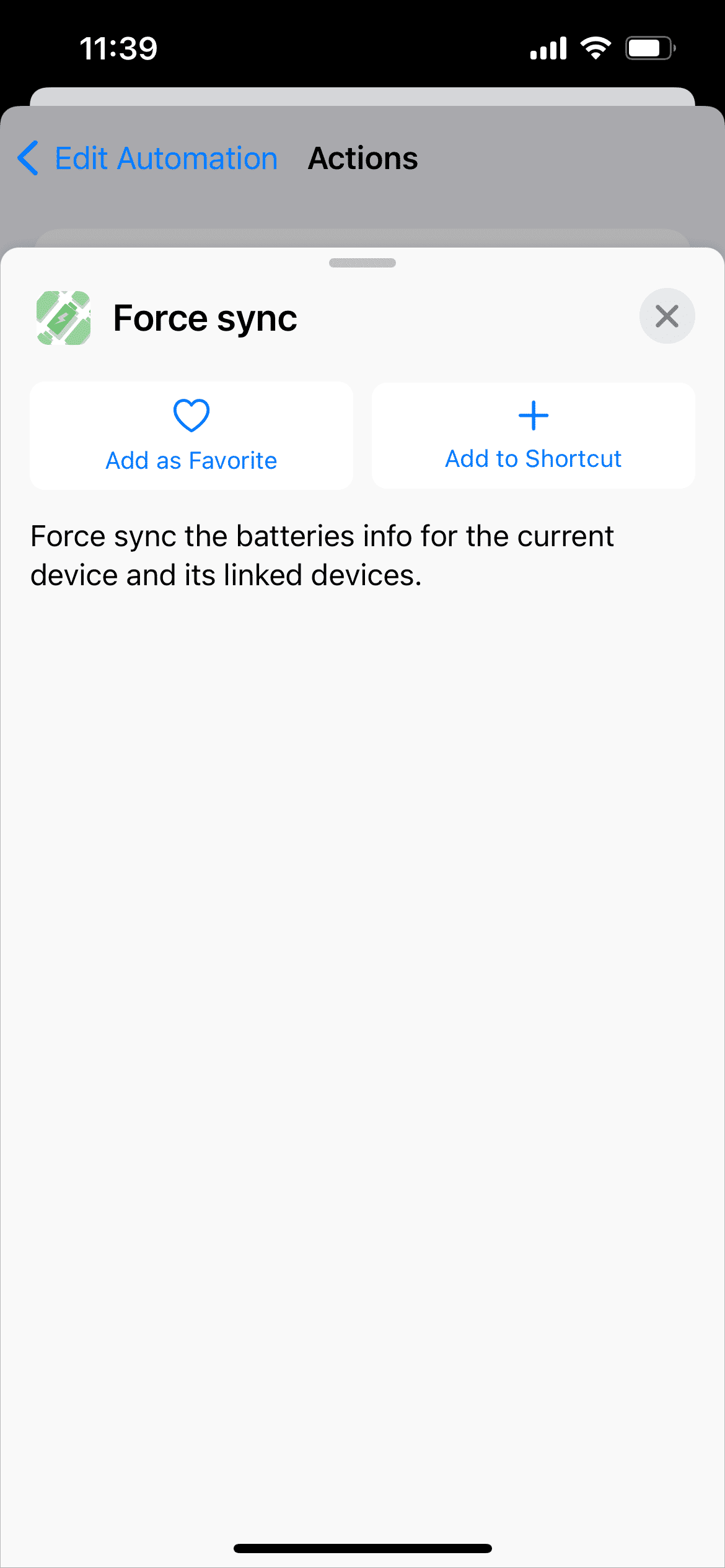
AllMyBatteries provides a Force sync action for the Shortcuts, running this action will trigger a sync for the current device and the devices linked to it.

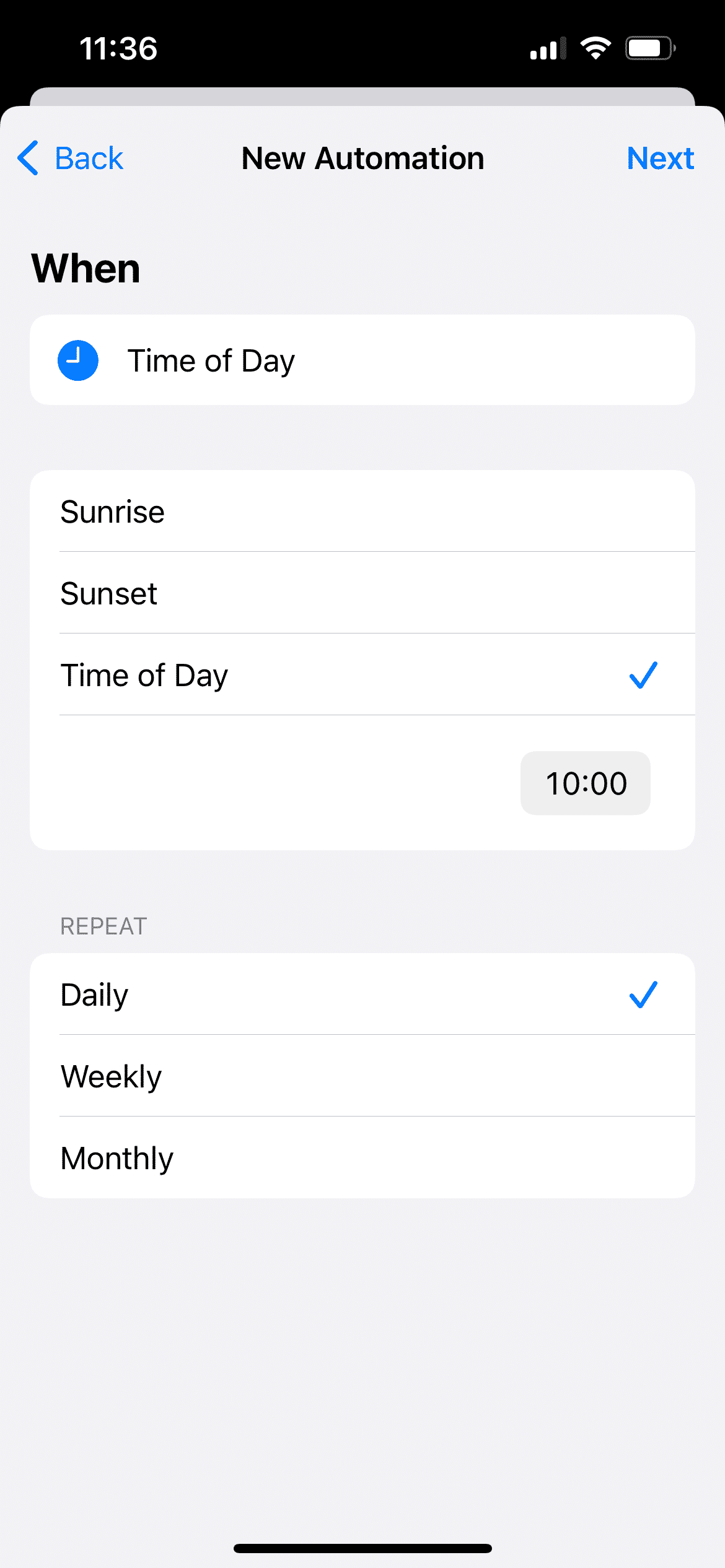
The Shortcuts app provides the Automation functionality, which allows you to trigger actions at specific points (e.g., specific time of day, arriving somewhere, battery level falling below 50%).

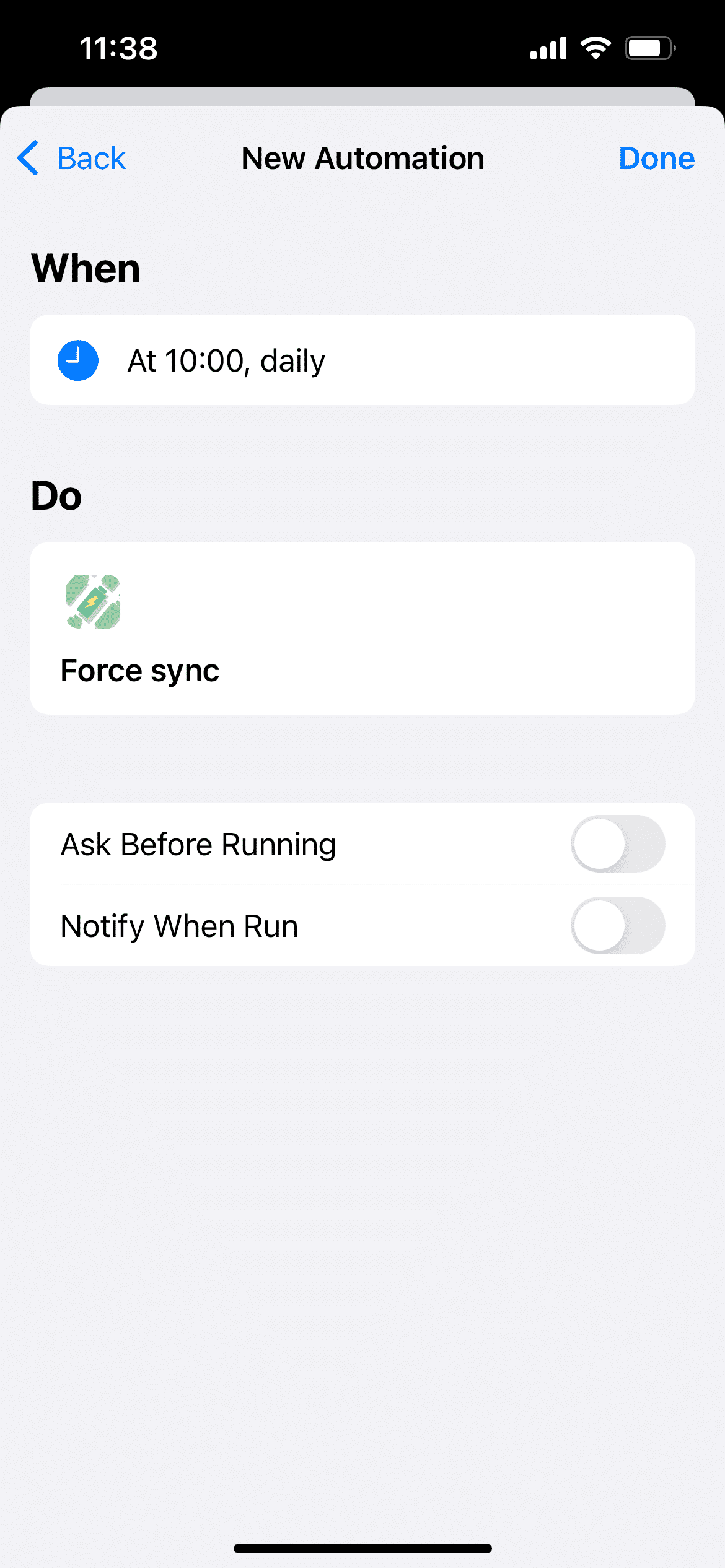
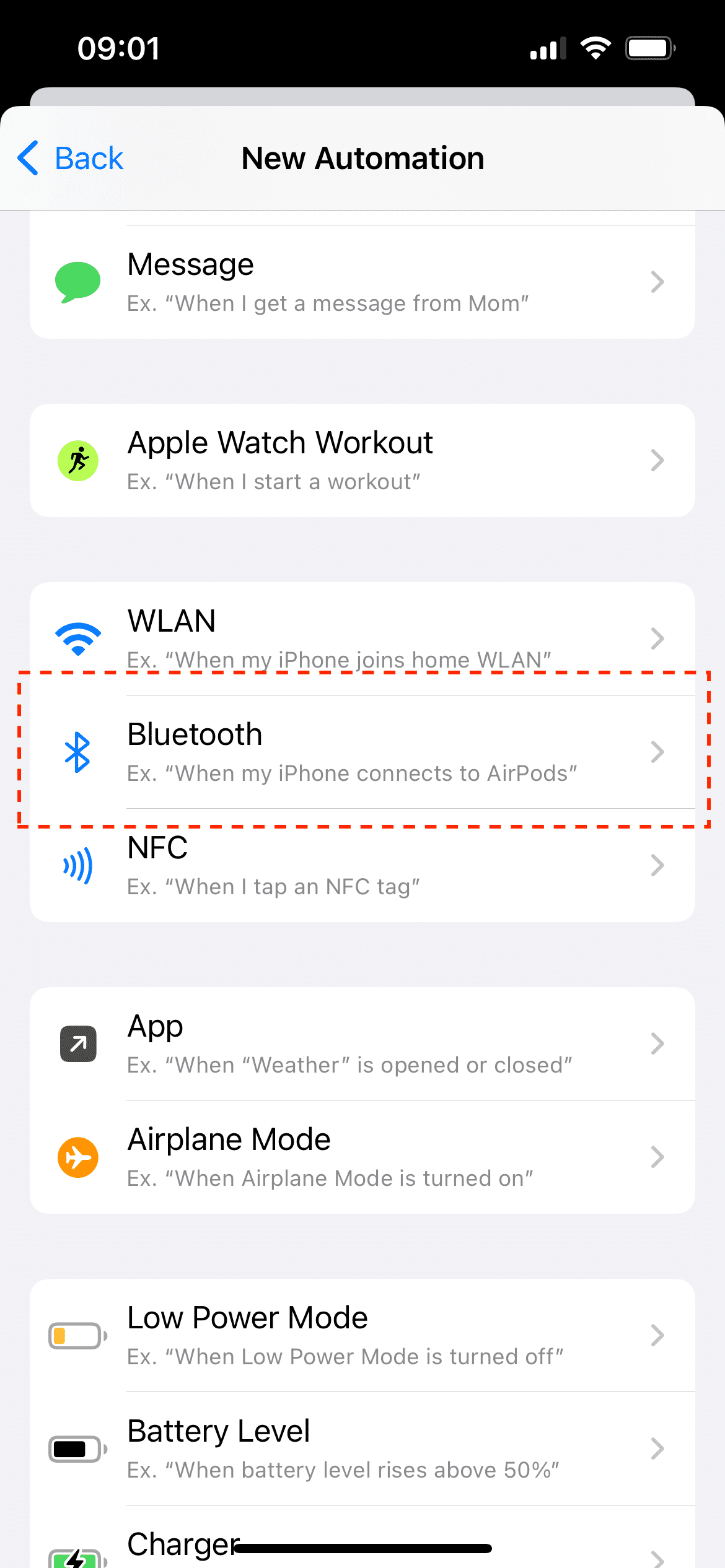
By combining Shortcuts automation with the AllMyBatteries Force sync action, you can force AllMyBatteries to sync whenever you need. The picture below shows an example that triggers a sync every day at 10:00, and there are many more trigger points to use. Among them, Charger, Battery Level, Wi-Fi, and Bluetooth are particularly useful for AllMyBatteries—just be creative!

How to Share My Membership with My Family

With a valid AllMyBatteries Ultimate family plan, your family can share the membership. To share your purchases with your family, follow these steps:

  1. Set Up Family Sharing
    Begin by setting up Family Sharing on your device. This feature allows you to share purchases, subscriptions, and more with your family members. You can find a detailed guide on how to set up Family Sharing here: Set Up Family Sharing.

  2. Enable Purchase Sharing
    After setting up Family Sharing, ensure that purchase sharing is enabled. This step is necessary to allow your family members to access your purchases. Learn how to enable purchase sharing here: Enable Purchase Sharing.

  3. Restore Purchases on Your Family Member’s Device
    Once purchase sharing is enabled, your family member can access the shared purchases. On their device, they simply need to click the ‘Restore Purchase’ button in the AllMyBatteries Ultimate purchase page.

By following these steps, your family members will be able to enjoy the purchases you've shared with them.

Two of My Devices Are Identified as One—How to Fix?

To change a device ID, open this article inside AllMyBatteries and use its device-ID link there.

In order for AllMyBatteries to effectively track your device and provide updates, an ID is necessary. Normally, each device will have a unique ID. However, if you have recently acquired a new device that was restored from the backup of another device, both devices will share the same ID. This can cause AllMyBatteries to mistakenly identify them as a single device and inaccurately update their battery levels. To resolve this issue, you can manually update the ID on one of the two devices by following this link: Update Device ID.


If the answer above doesn't fix your issue, or you have anything you'd like to share, please feel free to send me feedback!

Can't Find My Bluetooth Device—Why?

For many Bluetooth devices (almost all mice, keyboards, game controllers, and speakers), they are visible to the device you are running AllMyBatteries on (let's call it your iPhone, for example) only when they are in pairing mode or are already connected to your iPhone. If you can't find the Bluetooth device you'd like to add to AllMyBatteries, try connecting to it in the iOS Bluetooth settings first.

If your Bluetooth device is connected to your iPhone/iPad/Mac but you're unable to add it to AllMyBatteries, it could be because the manufacturer has chosen not to broadcast its battery information publicly. In such cases, AllMyBatteries won't be able to track the battery level of these devices.


If the answer above doesn't fix your issue, or you have anything you'd like to share, please feel free to send me feedback!

How to Enable Background App Refresh

To allow AllMyBatteries to refresh in the background, follow these steps:

  1. Open Settings.

  2. Go into General -> Background App Refresh.

  3. Make sure Background App Refresh is turned on.

  4. Select Wi-Fi & Cellular Data or Wi-Fi.

  5. Scroll down and enable AllMyBatteries.

If you use Low Power Mode, Background App Refresh may be temporarily disabled. Turn off Low Power Mode to allow background updates

Why Aren't My Devices Showing Up as Accessories?

Currently, the Add Accessories feature is verified to support Apple Magic Keyboard, Magic Mouse, Magic Trackpad, and MagSafe Battery Pack. However, it's theoretically able to support more devices. So if you have any device you think should show up here but doesn't, please let me know!

In the meantime, you can move to Bluetooth Device to try adding a general Bluetooth accessory.

Important note:
  Most devices are only visible to the device they are connected to. For example, if you have a Magic Trackpad connected to your Mac, then you can only add it in AllMyBatteries on your Mac, not in AllMyBatteries on your iPhone.

If the answer above doesn't fix your issue, or you have anything you'd like to share, please feel free to send me feedback!

How to Enable iCloud for AllMyBatteries

To enable iCloud for AllMyBatteries, follow these steps:

  1. Open your device's Settings.

  2. Tap on your name at the top to access the Apple ID section.

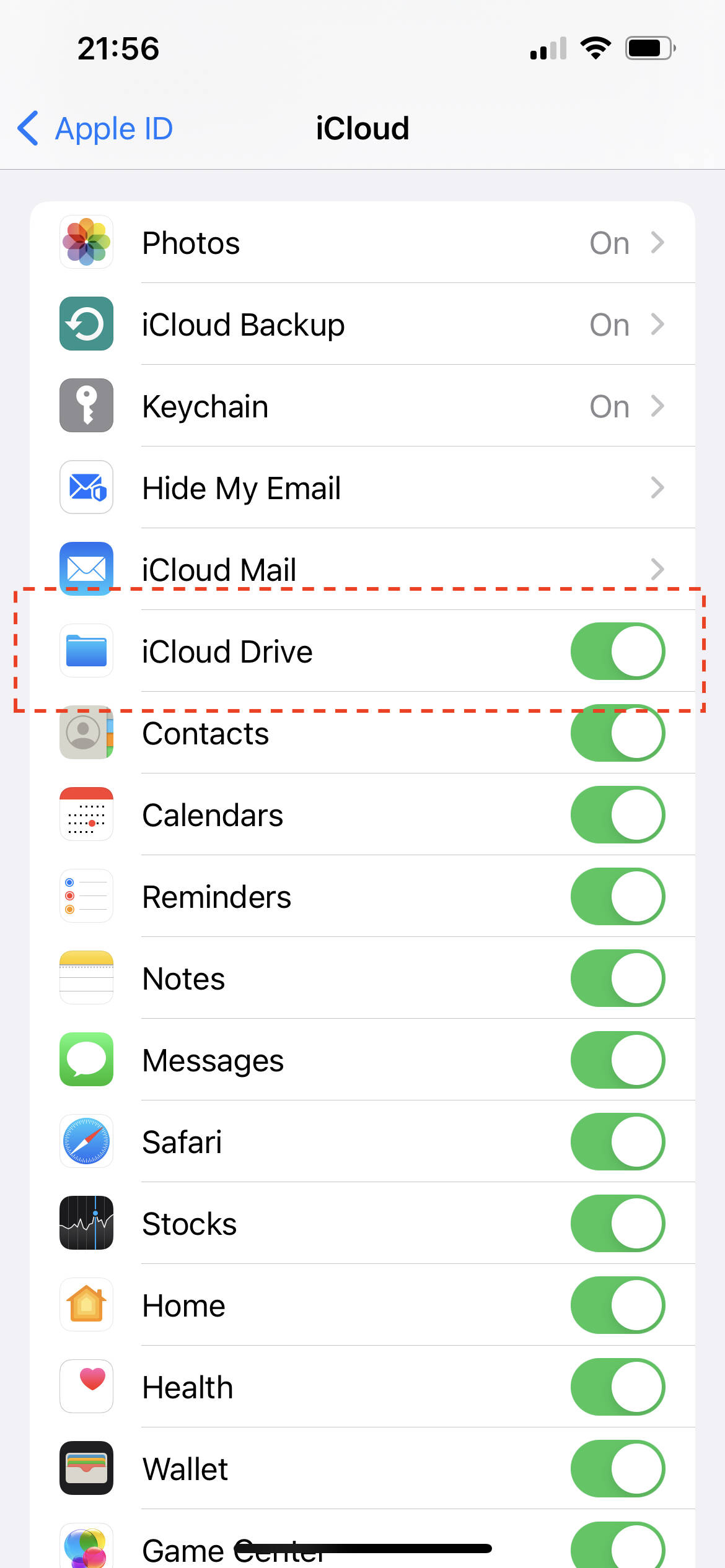
  3. Select iCloud. You’ll see a screen similar to this:

  1. Make sure the following options are enabled:
  • iCloud Drive
  • Scroll down and ensure AllMyBatteries is turned on.

For Mac users, the interface may look slightly different, but the steps are essentially the same. Just make sure both iCloud Drive and AllMyBatteries are enabled.

Tips For AirPods

Situation

The AirPods case battery level is only trackable when the case is open. Since AllMyBatteries usually syncs battery info when the case is closed, the AirPods' battery level doesn't get updated very often. (Note: all battery level references here refer to the case, not the earphones.)

v1.2.1 update: On iOS devices, AllMyBatteries now can track the battery level of AirPods Pro gen 2 when you are using the earphones. For other AirPods, the battery level of the case remains trackable only when its case is opened. On your Mac, if you've installed AllMyBatteries and configured the Bluetooth Helper, you will be able to track the battery level of any of the AirPods when you are using the earphones.

Solution

There's not much we can do about the way AirPods send out their battery level or the sync frequency of AllMyBatteries. But the system-provided Shortcuts app leaves us a way to do something when connected to the AirPods, at which point we are very likely to retrieve the battery level of the AirPods. However, it requires some manual setup in the Shortcuts app.

So here's what you need to do:

  1. Open the Shortcuts app. If it's not installed, install it from the App Store.

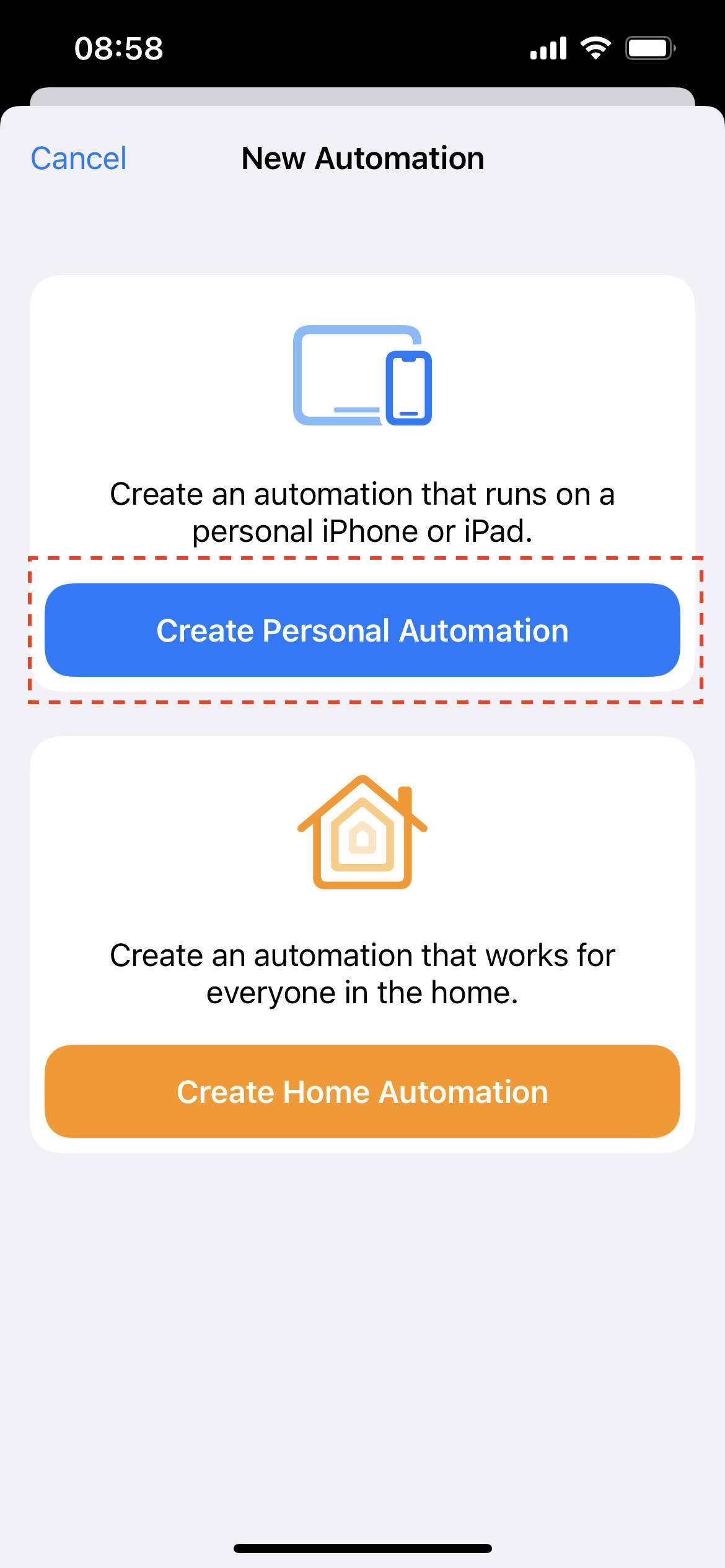
  1. Select the Automation tab and click the add button on the top right corner.
  2. Click Create Personal Automation

  1. Select Bluetooth as automation trigger point.

  1. Choose your AirPods on the Choose Devices page. Then on the Actions page, add AllMyBatteries' Force sync action. This way AllMyBatteries will be able to sync when the system connects to your AirPods.

  1. All done! After setting up, when you open your AirPods' case you should be able to see a notification from Shortcuts saying it's running the automation. 🎉 Note: Due to some restrictions of Shortcuts and iOS, you have to click the notification to run the sync action.
Tips For Custom Icon

Choose a Suitable Image

For the best experience, we strongly suggest that you use an image that contains only the main subject as your custom device icon. On iPhone, you can use the Lift a subject from the photo background on iPhone feature to create the image:

  1. Touch and briefly hold the subject in the Photos app. When an outline appears around the subject, tap Share, then save the subject as a new image.
  2. Import the image that contains only the main subject into AllMyBatteries. For the best visual result, we recommend that you keep some distance between the subject and the border when resizing the image.

Sync Across Multiple Devices

Custom device icons you set will automatically sync across your multiple iCloud devices, so you only need to set it once on a single device. Loading and caching the newly set image on other devices may take some time (longer on Apple Watch), so please be patient.

Tips for Charge-up Notification

Charge-up notification might not work on some devices

For the Charge-up notification to work, AllMyBatteries must be able to identify the charge state of your device. It's currently verified that we can retrieve the charge state on iPhone, iPad, MacBook, and Apple Watch. But for your Apple Pencil, AirPods, and any other Bluetooth devices, we don't have the ability to get the charge state.

The notification might be delayed

According to why my iOS devices not up-to-date, when AllMyBatteries is in the background, when and whether your devices will be updated depends on iOS. For example, if you have a device A and set a charge-up notification for when A's battery level reaches 80%, it's common for A's battery level to reach 85% before AllMyBatteries gets a chance to update. As a result, you may receive the charge-up notification when A's battery level hits 85%.

We highly recommend you check out How to improve battery tracking accuracy to set up an automation to force sync AllMyBatteries when A's battery level reaches 80%. This will make the notification much more timely.

Why Aren't My Bluetooth Devices Up to Date?
  1. For the Bluetooth device to be updated, its central device (the device managing the Bluetooth device) must get a chance to refresh. If the central device isn't being updated, please check out Why my iOS devices not up to date?
  2. If the central device did get a chance to refresh but the Bluetooth device isn't updated, it might be because the central device cannot find or connect to the Bluetooth device at the moment of refresh. If so, please check out Can't find my bluetooth device, why?
  3. If the Bluetooth device was updated but the battery level doesn't seem accurate, it might be because the Bluetooth device itself is broadcasting an inaccurate battery level. This is not uncommon and occurs even with many well-known brands.
Why Is My Current Device Not Up to Date?

To change a device ID, open this article inside AllMyBatteries and use its device-ID link there.

If you find that the current device (the device you are currently running AllMyBatteries on) cannot be updated, even when force refresh doesn't work, and if you go to the "Add Device Page" and see the option to "add current device", this means AllMyBatteries has lost track of your current device. You need to modify the ID of the current device to get it back on track (or remove the existing one then re-add it).

The reason why this happens is that AllMyBatteries needs an ID to identify your device. The ID of the current device is provided by iOS. Due to some privacy concerns, Apple doesn't keep this ID persistent forever — it may change in some cases including but not limited to:

  1. User uninstalls then re-installs AllMyBatteries
  2. User resets the device
  3. System updates to a beta version

If the answer above doesn't fix your issue, or you have anything you'd like to share, please feel free to send me feedback!

Why Aren’t My iOS Devices Up to Date?
On iOS 17, battery levels can only be retrieved in 5% increments due to a new privacy policy.

For AllMyBatteries to track your battery levels, the app needs to be running. While the app is open in the foreground, it can freely retrieve battery levels and sync them to iCloud. However, if you move AllMyBatteries to the background (this means going back to the home screen, not force quitting the app—please don’t force quit! Doing so will prevent AllMyBatteries from waking up in the background to sync your battery levels), the frequency of background updates depends largely on the iOS system (typically every 15–30 minutes). This behavior is influenced by three main factors:

  1. Background App Refresh Settings:
    Make sure Background App Refresh is enabled for AllMyBatteries. Go to Settings → General → Background App Refresh and confirm that it’s turned on for the app. Without this, background syncing won’t work.

  2. How Often You Use AllMyBatteries:
    According to Apple, "If the user runs your app often, it’s likely you’ll get frequent background fetch events." So, try opening AllMyBatteries regularly to increase the frequency of background updates. (Tip: Adding widgets for AllMyBatteries can also help improve update frequency.)

  3. Device Conditions:
    Background refresh frequency also depends on your device’s state. If your device is under heavy load or running low on battery, background updates will occur less often. On the other hand, when your device is plugged in, it’s more likely to allow background updates. Keep in mind that enabling Low Power Mode will likely stop all background refresh activities.

Battery monitoring guides

Step-by-step help for checking device batteries, setting up widgets, and keeping updates working.