To check your iPhone battery on a Mac, install AllMyBatteries on both devices and use the same iCloud account. Open the iPhone app to upload a reading, then view its last synced battery level in the Mac app or menu bar.
Set up your iPhone and Mac
- Install AllMyBatteries on your iPhone and Mac. Use the same iCloud account on both devices.
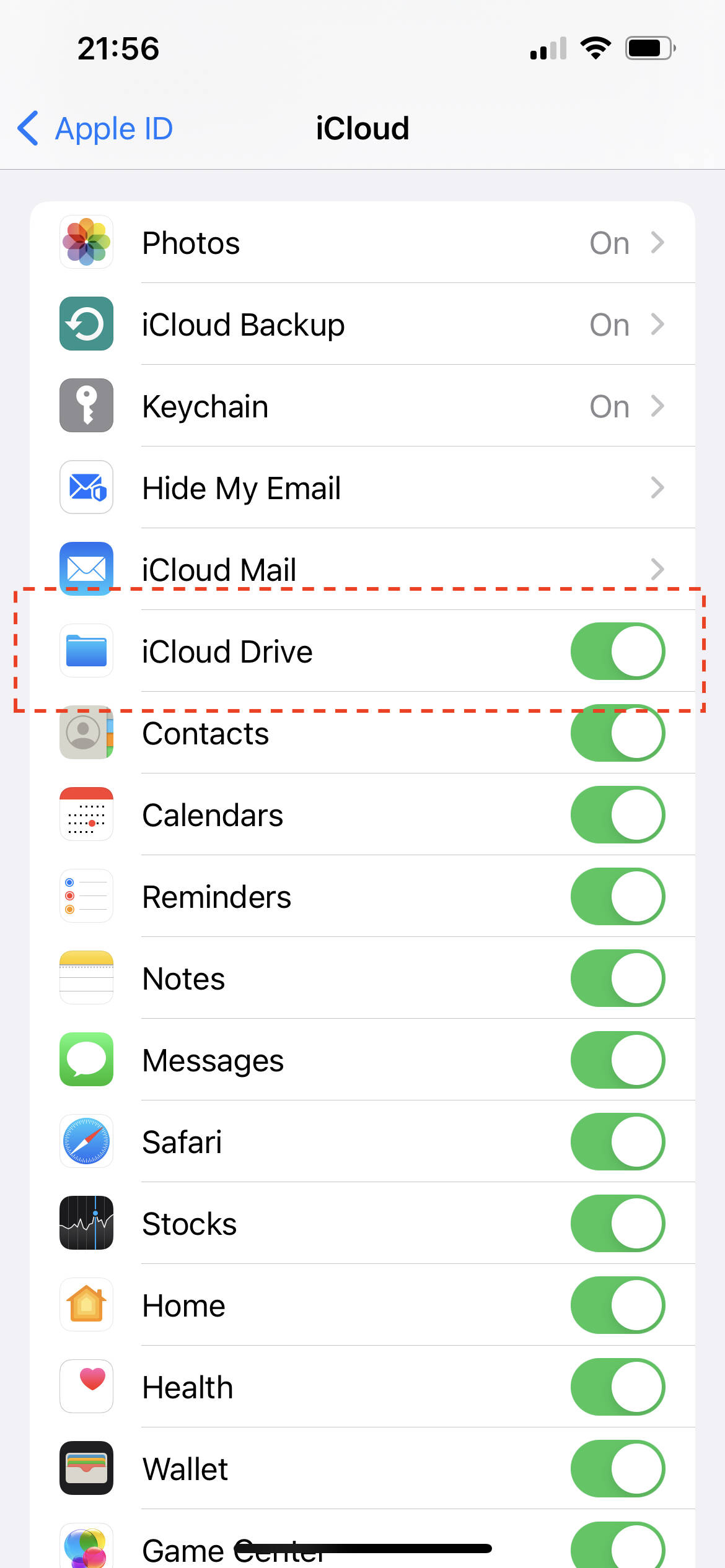
- Enable iCloud Drive and AllMyBatteries in iCloud settings on both devices. See how to enable iCloud.
- Open AllMyBatteries on your iPhone so it can read and upload its battery level.
- Open AllMyBatteries on your Mac. Your iPhone appears in the synced device list; the Mac app also offers a menu bar view.
The Mac reads the battery information uploaded by your iPhone. It cannot continuously read the phone’s battery when the phone is not sending updates.
Keep updates working
Enable Background App Refresh on your iPhone and avoid force quitting AllMyBatteries. Low Power Mode and system conditions can delay background updates. Open the iPhone app when you need a fresh reading.
Background updates are often 15–60 minutes apart, but the system controls timing. On iOS 17 and later, reported battery levels use 5% increments. Read why iOS devices may not be up to date for troubleshooting.
Check your iCloud settings
Settings labels vary by operating system version. This example shows the iCloud options used by AllMyBatteries.